
Variant templates: one variant setup shared by many tours
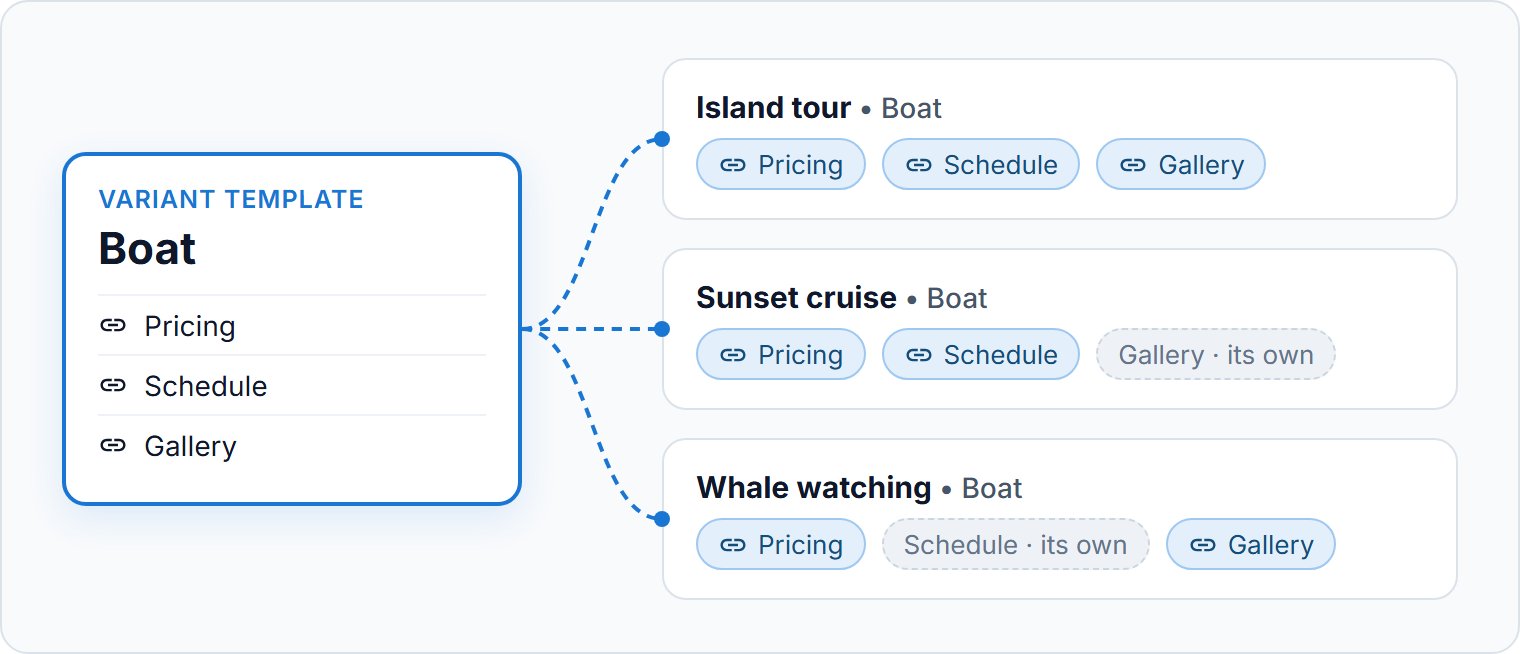
A variant template holds a variant's setup once, such as the prices and schedule of a boat that several of your tours use. Variants on any tour can sync with it, and follow every change you save in it.
Creating a template
- 1
Start from a variant
Open the tour, then Variants. In the variant's menu, choose Save as template and name it. Save the tour first if the variant is new.
- 2
Or start from scratch
Go to Tours → Variant templates and click Create template.
- 3
Set it up
Open the template from Tours → Variant templates. Its pages work like a variant's in the tour editor: fill them in and click Save.
A variant saved as a template becomes synced with it. From then on, you change it in the template.
Syncing a variant with a template
In a variant's menu, choose Sync with template, pick the template and tick the sections to follow. The ticked sections take the template's setup when you save the tour. A new variant can do the same: choose Start from a template when you add it.
- ✓Its name and description
- ✓Whether it sells as a private tour and as a group tour
- ✓Each kind's booking rules, pricing, schedule and components
- ✓Items, add-ons and the gallery
What a template doesn't hold
- Age group prices: each variant keeps its own, also in a synced Pricing.
- Agents' and agencies' season prices: a template holds General season prices only.
Removing a template
Open the template and choose Remove template in the menu at the top. Synced variants keep their data and stop following it. The template's photos are deleted, also from the variants that show them; photos a variant added itself stay.
Questions we get asked
Import, in the menu of a section in the tour editor, copies that section once from a template or another tour. Nothing stays linked: later changes never reach the copy.
No. A template is removed only from its own page.
No. Each template's name must be unique in your business, whatever its capitals or accents.