

| {{ feeType.typeTitle }} | ≤{{ feeType.percent }}% + {{ feeType.fixed }} {{ feeType.currencyCode }} + {{ feeType.taxTitle }} |
Countries
Currencies
What is PayPal?
PayPal Checkout is PayPal's standard online payment gateway. Your customers can pay using their PayPal balance, credit and debit cards (no PayPal account required), and country-specific options like Pay Later and Venmo. When the customer approves the payment on PayPal, TourTask captures it immediately and marks the related booking as paid.
Obtain required credentials for PayPal
To integrate PayPal with TourTask, you will first need to obtain a set of credentials (often referred to as API credentials), which will identify you when your clients pay you using the PayPal payment gateway.
For PayPal, the following credentials are required:
- Client ID
- Client secret
To obtain these credentials, please follow these steps:
-
Sign in to the PayPal Developer Dashboard
Go to developer.paypal.com/dashboard and log in with your PayPal Business account. A personal account will not work — if you only have a personal account, upgrade it to Business in your regular PayPal account settings first. -
Switch to Live mode
Open Apps & Credentials in the dashboard, then switch the toggle at the top of the page from Sandbox to Live. Sandbox credentials only work for testing and cannot accept real customer payments. -
Create a Live app
Open Apps & Credentials, click Create App, choose type Merchant, enter a name (for example, TourTask), and click Create App. -
Copy your credentials
On the app page, copy the Client ID. Then click Show next to the Secret to reveal the Client Secret and copy it as well. Paste both values into TourTask under Configuration > Payment Options for PayPal Checkout.
No webhook configuration is required. TourTask captures the payment directly when the customer returns from PayPal after approving the order.
How to setup PayPal in TourTask
For PayPal, the following credentials are required:
- Client ID
- Client secret
These credentials must be entered in TourTask to activate this payment gateway. To achieve this, follow these steps:
- Log into your business panel in TourTask at [business shortcode].tourtask.com. Your business shortcode will often consist of the initials of your business name, so for a business called My Tour Business, the URL of your business panel would be mtb.tourtask.com.
-
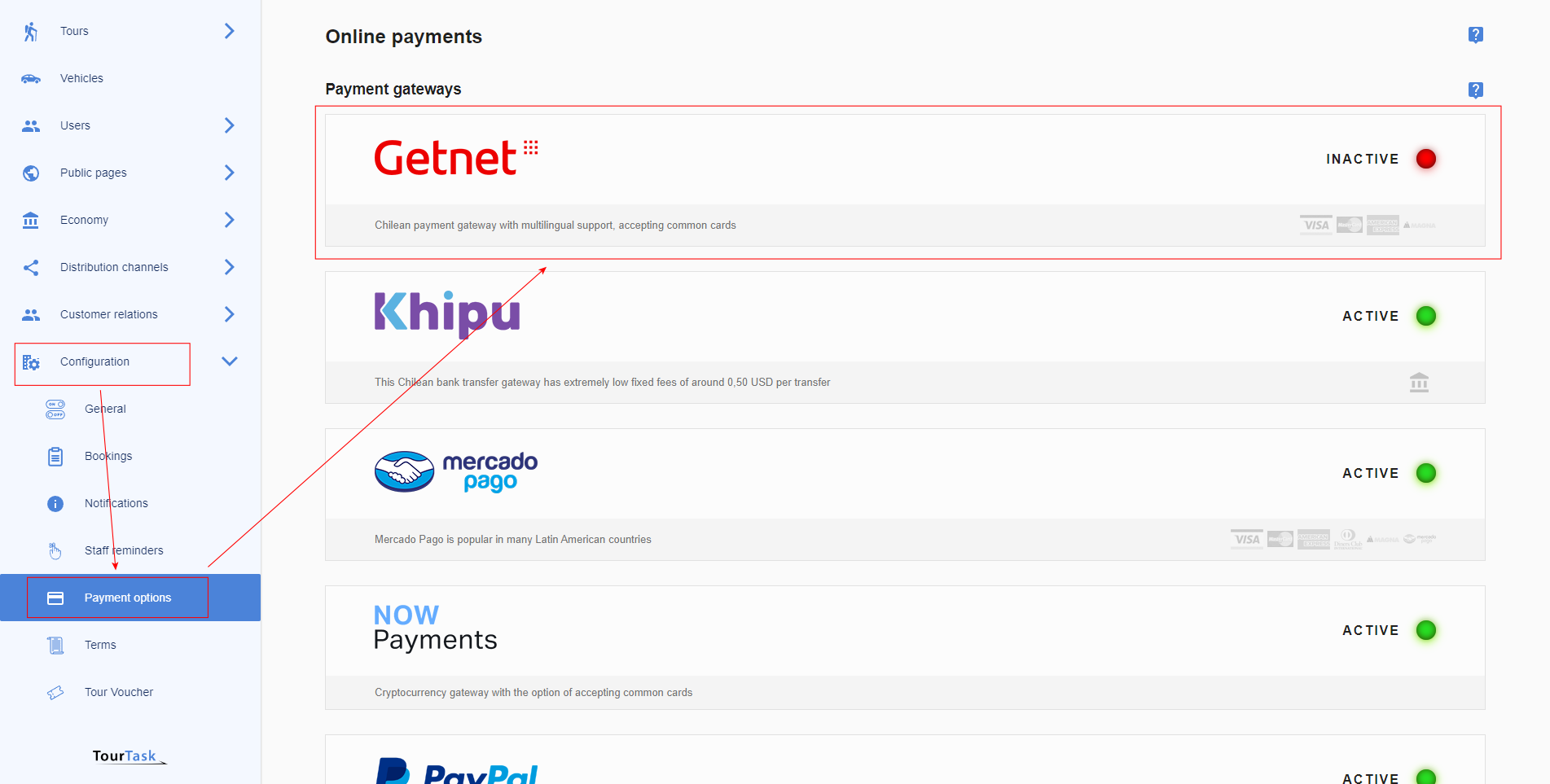
Go to Configuration > Payment Options and select the PayPal payment gateway.
-
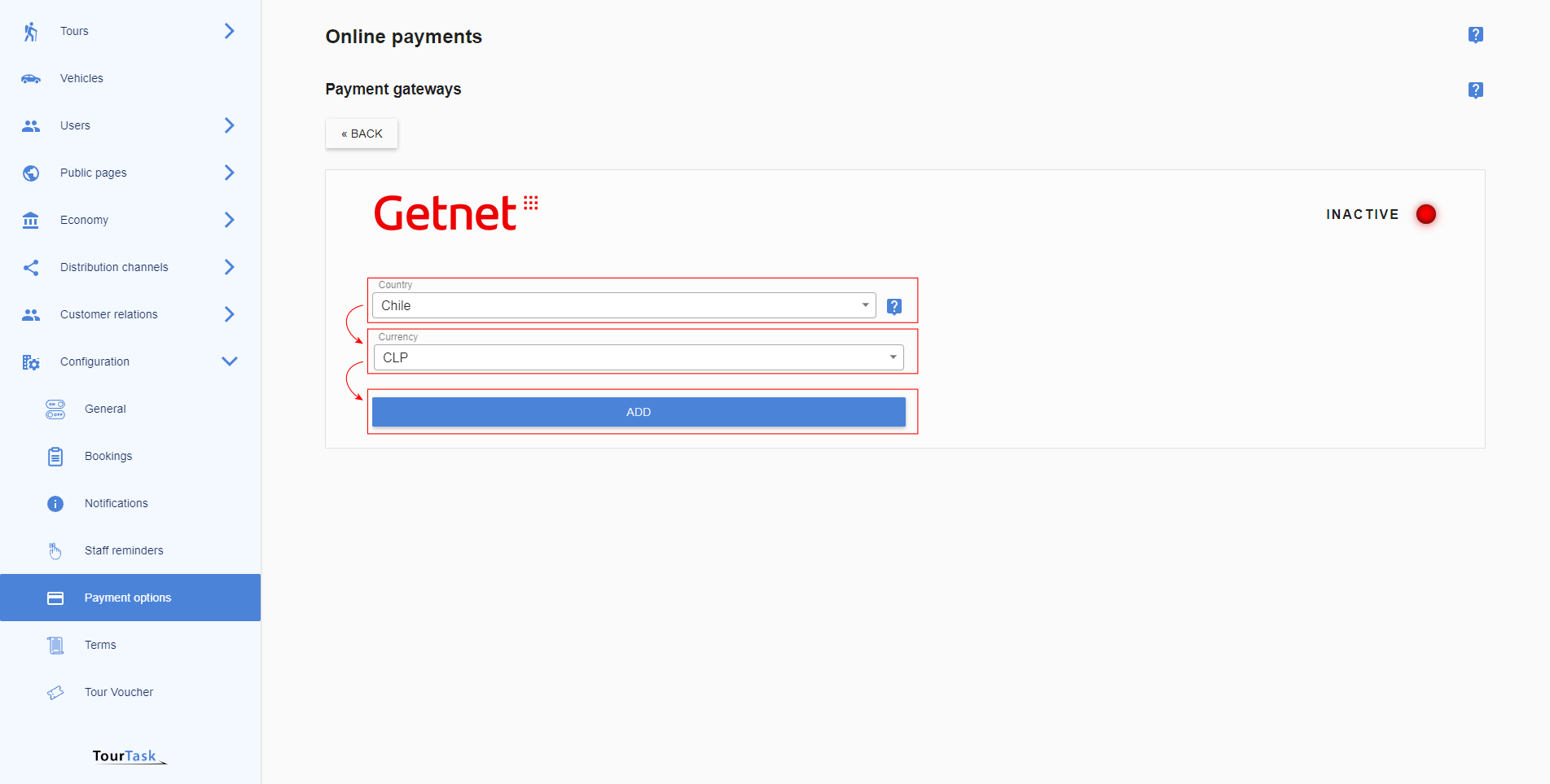
Select country and currency and add the gateway.
-
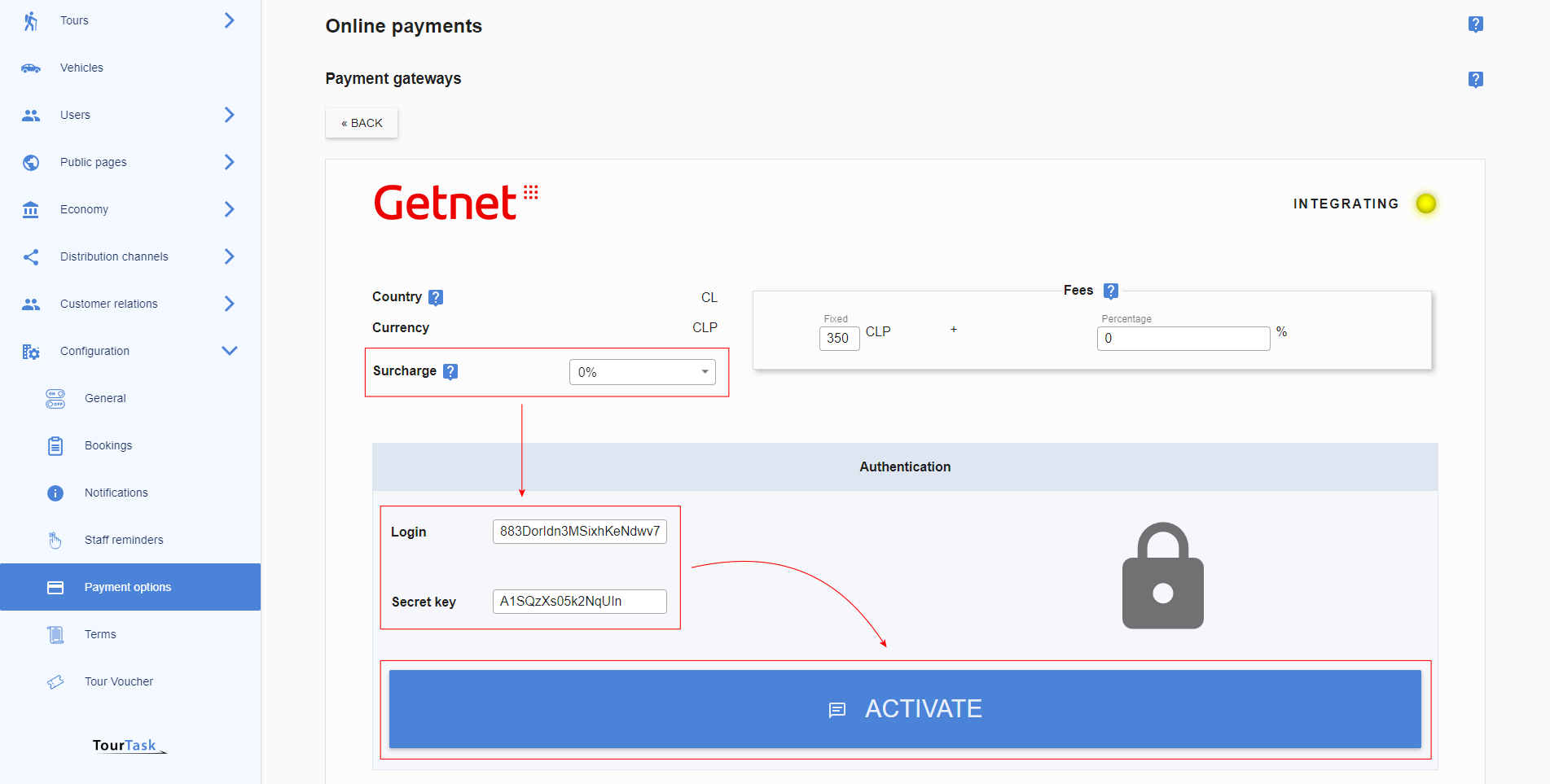
Optionally add a surcharge to cover transaction costs on your side when clients pay using PayPal. Fill out the required credentials and activate the gateway.